Logic Pro
Getting started with Doppler Instruments
Intro
Doppler instruments are built into Logic's sampler and utilize its native toolset rather than relying on 3rd party software. This not only allows for seamless integration with Logic, but also opens the instrument framework to users in a way that is familiar, efficient, and more creatively flexible than any other existing format. Our intention is to deliver a creative experience that is both simple and inspiring for new users, while offering a powerful, highly customizable platform for seasoned sound designers and Logic Pro enthusiasts. In order to make the best use of our instrument line, it's important that you carefully follow the installation instructions and read the following guides.
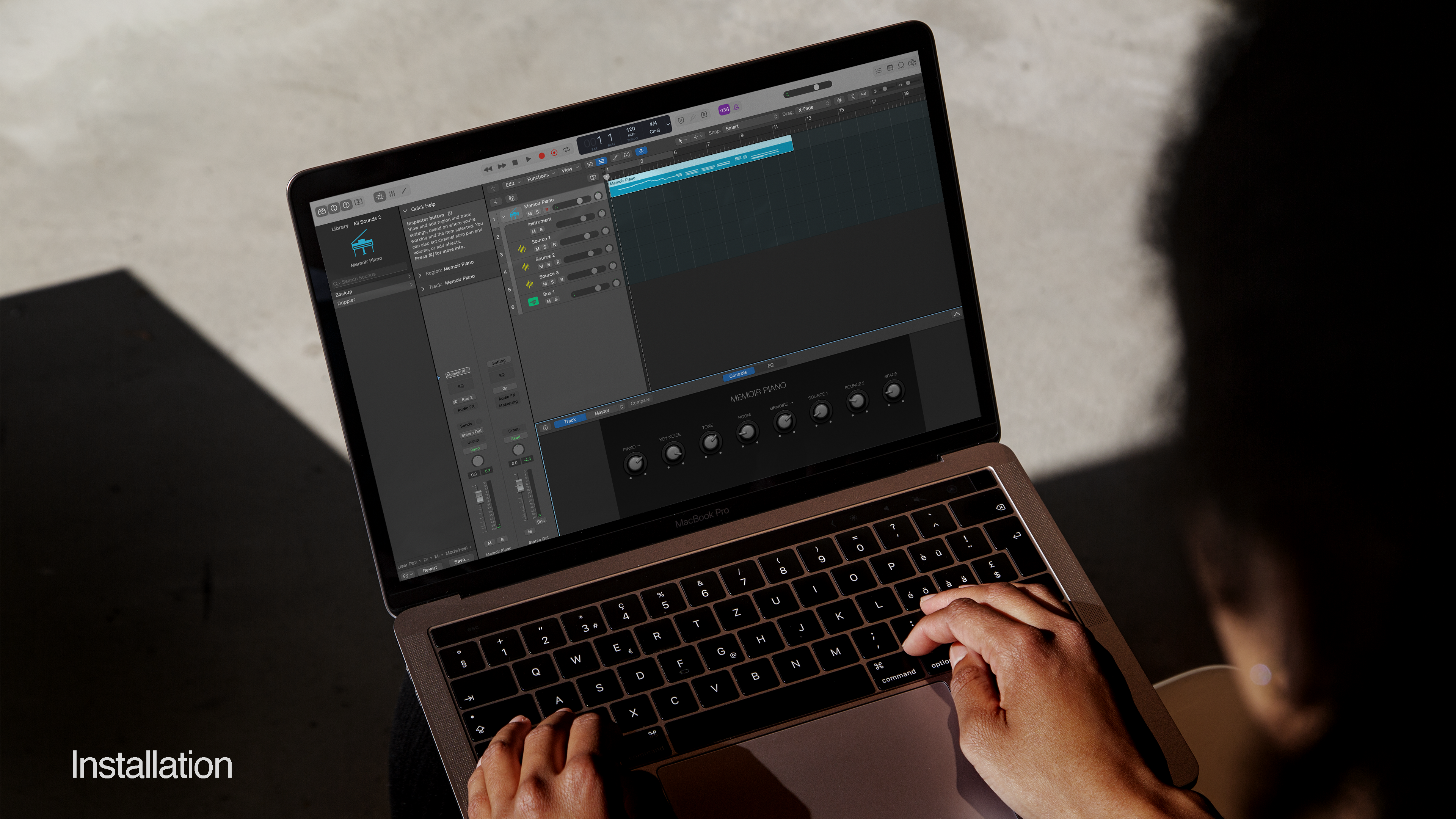
Getting Started
When you navigate to the instrument folder you'll find multiple sub categories entitled Modwheel, Aftertouch, Roli Seaboard, and Expressive E Osmose, which contain dedicated patches for each midi controller type. We've designed our instruments to perform optimally in each, recognizing the fundamental differences between devices, and in an attempt to achieve a unified user experience between the various platforms. Within these folders can be found the individual instrument designs and presets organized according to sound type. Select the folder that's most applicable to your midi controller.
Doppler instruments are designed to sound beautiful and play expressively straight out of the box using only your midi controller, however, each design features 8 core macro controls which can be accessed and automated via Logic’s smart controls feature by clicking the smart control icon or hitting the key command B. These provide users with extended instrument functionality and allow for seamless, consistent integration with outboard midi controllers. Macros can be linked to any external control surface by clicking on the inspector button at the upper left hand side of the controls panel and navigating to the external assignments window. See quick view below.
Quick View
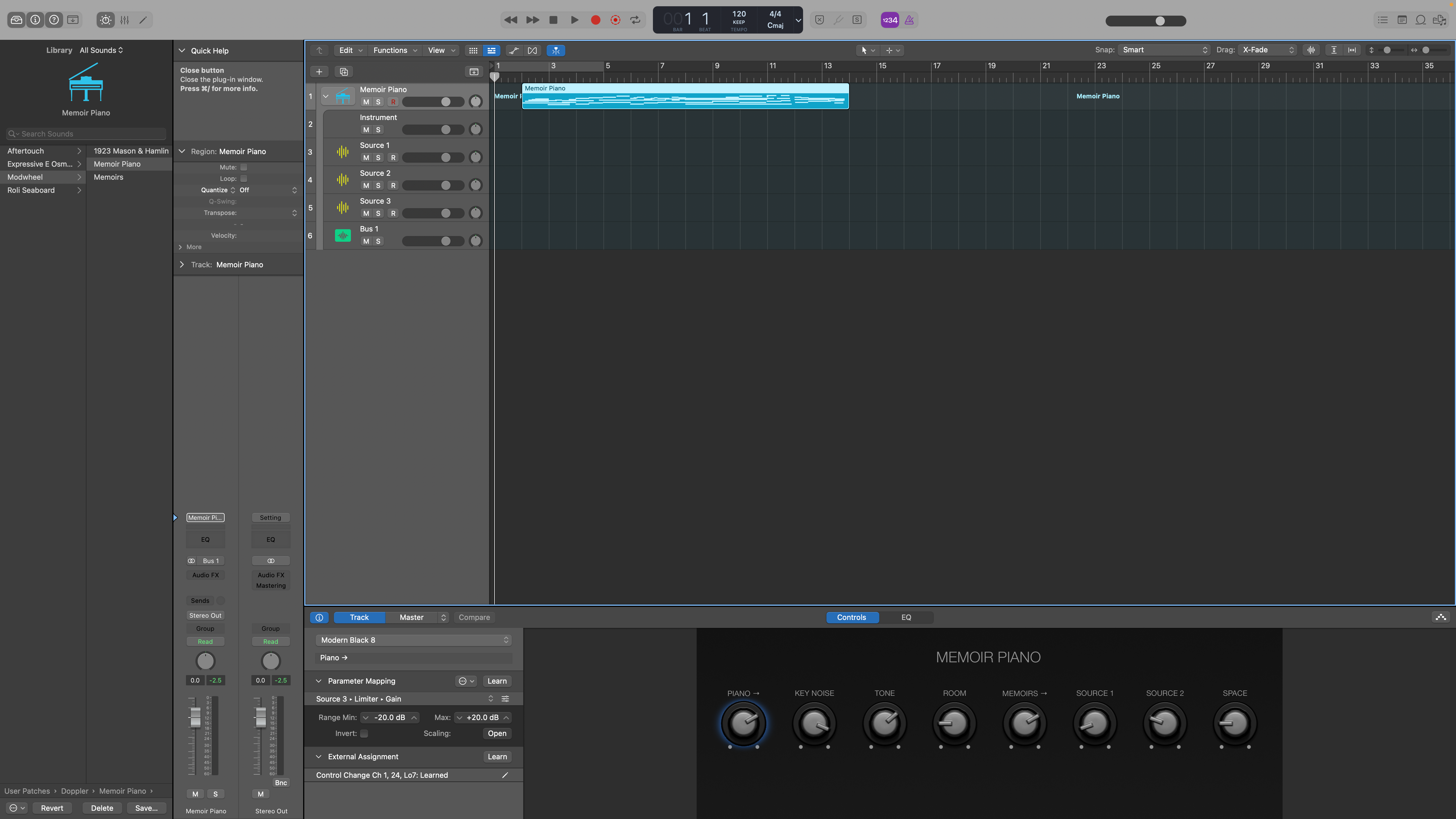
Expand the instrument track stack to reveal the individual Source layers, effects busses, and sub-level instrument controls.
Load and organize your instruments from the User Patches section of Logic's native browser, or manually drag and drop them into the track window if preferred.
Hit key command B or click the smart controls button to access the instrument, source, and bus macro controls.
You can access your instruments and their internal Source layers from Logic's automation lanes, mixer, and step sequencer.
Link the macros to any external device from the External Assignments section of the inspector window. You can also customize macro mapping from the Parameter Mapping section above.
Framework
All Doppler instruments are built into track stacks and are represented by the color blue. They contain one or more Source layers which are represented by the color yellow. Sources are individual tracks that contain a unique instance of Sampler, and as such can be processed, modulated, and automated independently of one another. They also include their own unique set of macro controls, and are occasionally sent to effects busses which are represented by the color green. Sources are, in many ways, similar to the individual voices or oscillators of a synthesizer. Instrument designs that feature multiple Source layers will often times include an additional set of sub level Instrument controls which affect multi-Source interaction and external midi controller modulation.
Our instrument line benefits from the modular functionality inherent in Logic's workflow and feature numerous ways to utilize, load, and hot-swap sample content within the instrument's framework. For example, you can drag single samples over a given Source track to automatically import and map your own sounds into our instrument designs without disturbing the existing architecture. Additionally, multisample .EXS patches can be loaded into each individual instance of Sampler without altering any of the pre programmed synth settings by clicking the cogwheel icon at the top right side of Sampler's window and selecting "Import Mapping Without Synth Parameters". This feature allows you to utilize Logic's entire stock sample library within our instrument framework in addition to any custom sounds or patches generated using auto-sampler. For detailed sample import protocols, see below.
Sample Import
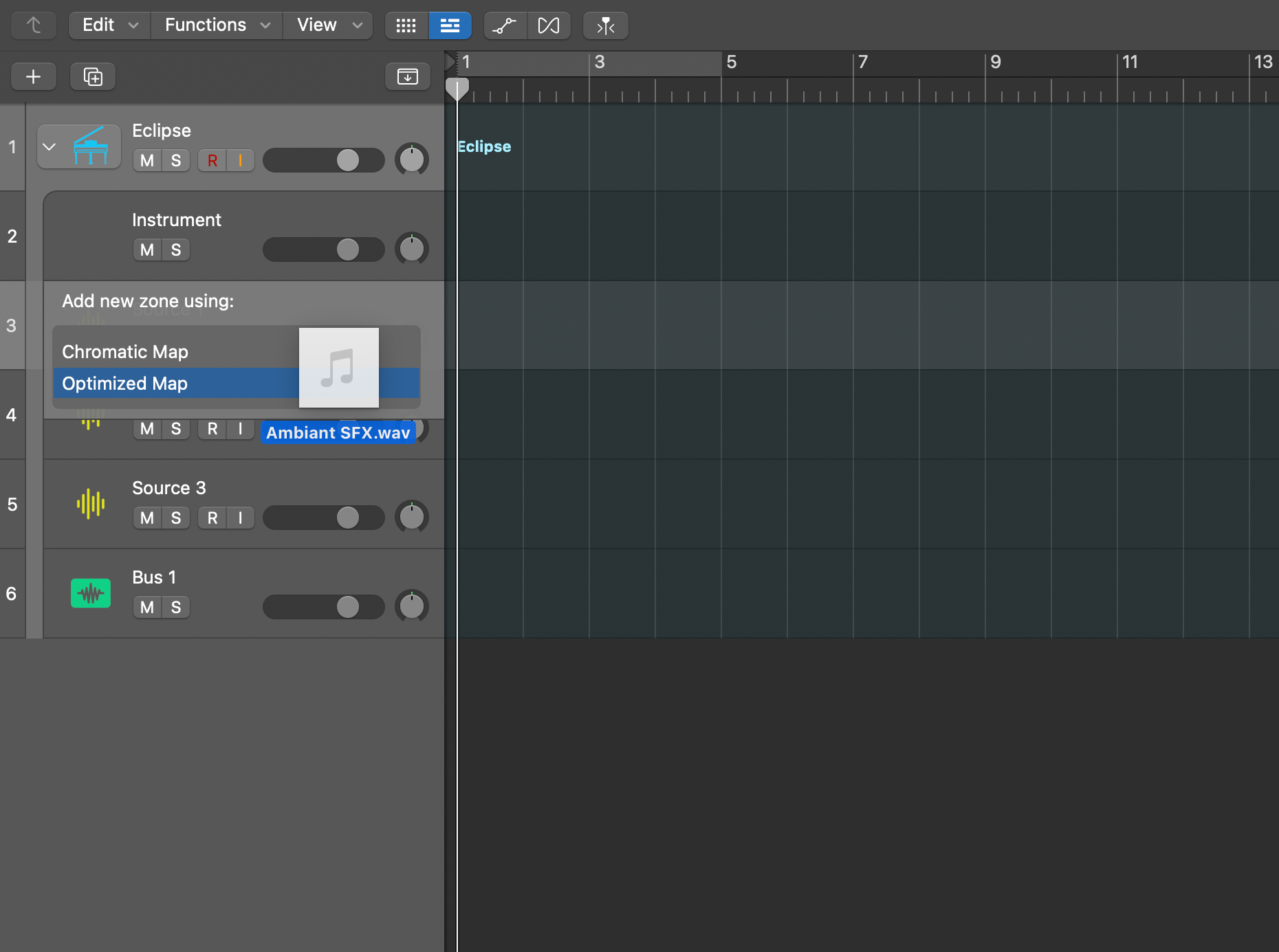
Single Sample
You can import any sample into our instrument framework by dragging the sample and hovering over a given Source track. We recommend choosing the Optimized Map option which will automatically map the sample based on pitch detection. The zone editor will open automatically, and you can fine tune any settings to your liking. All of the existing Sampler modulation settings will remain unchanged, and the instrument will function as intended, but with your new sample content.
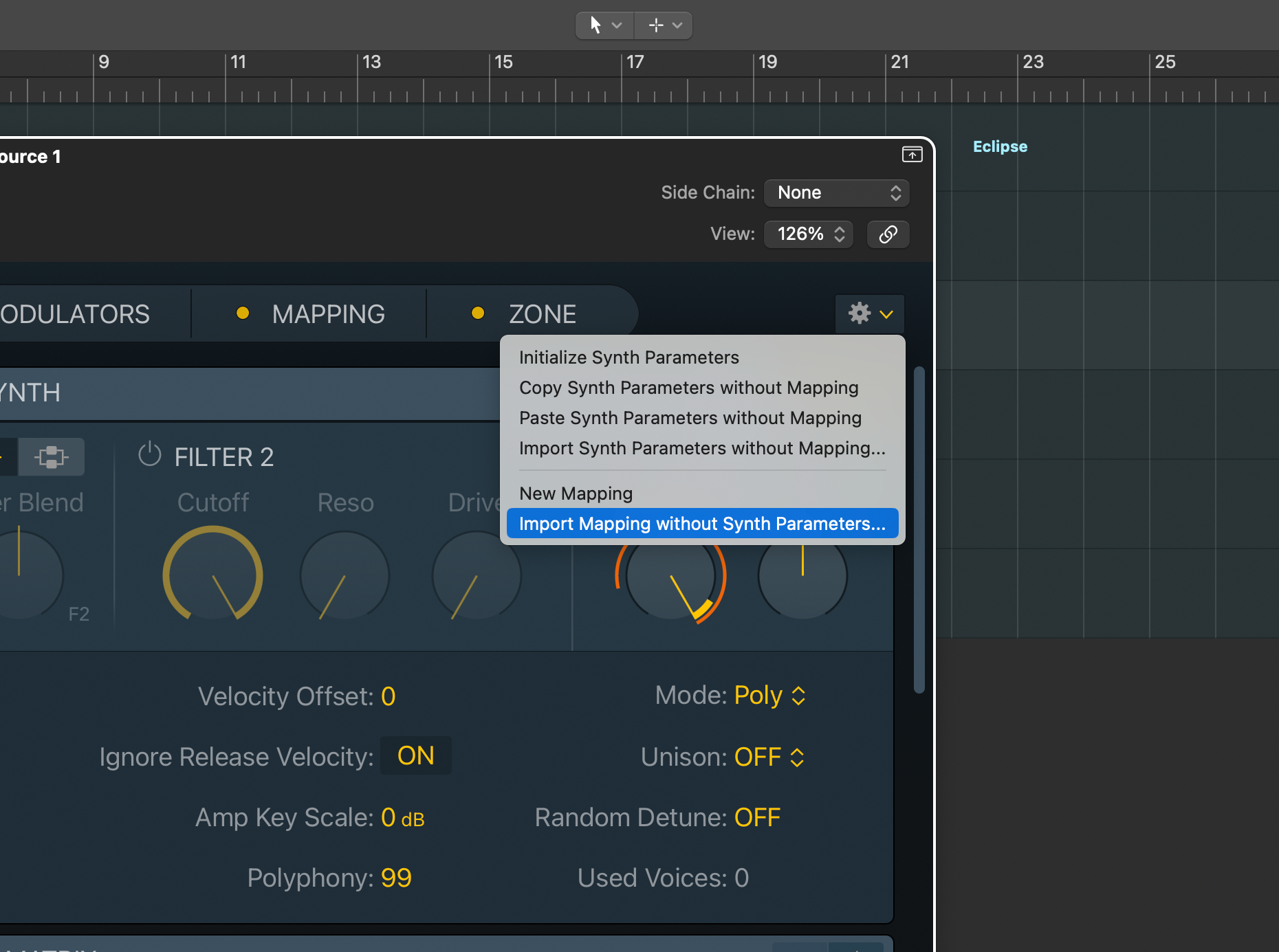
EXS Multi-Sample
From within the main Sampler window, you can import entire multi-sample maps from any Doppler instrument, stock Sampler instrument, or .exs file without breaking the instrument’s architecture. To do so, locate the gear icon at the upper right side of the window and select Import Mapping Without Synth Parameters. TIP: Logic’s auto-sampler will automatically create Sampler instruments (.exs files) which you can use to import into the Doppler framework.
Logic for iPad
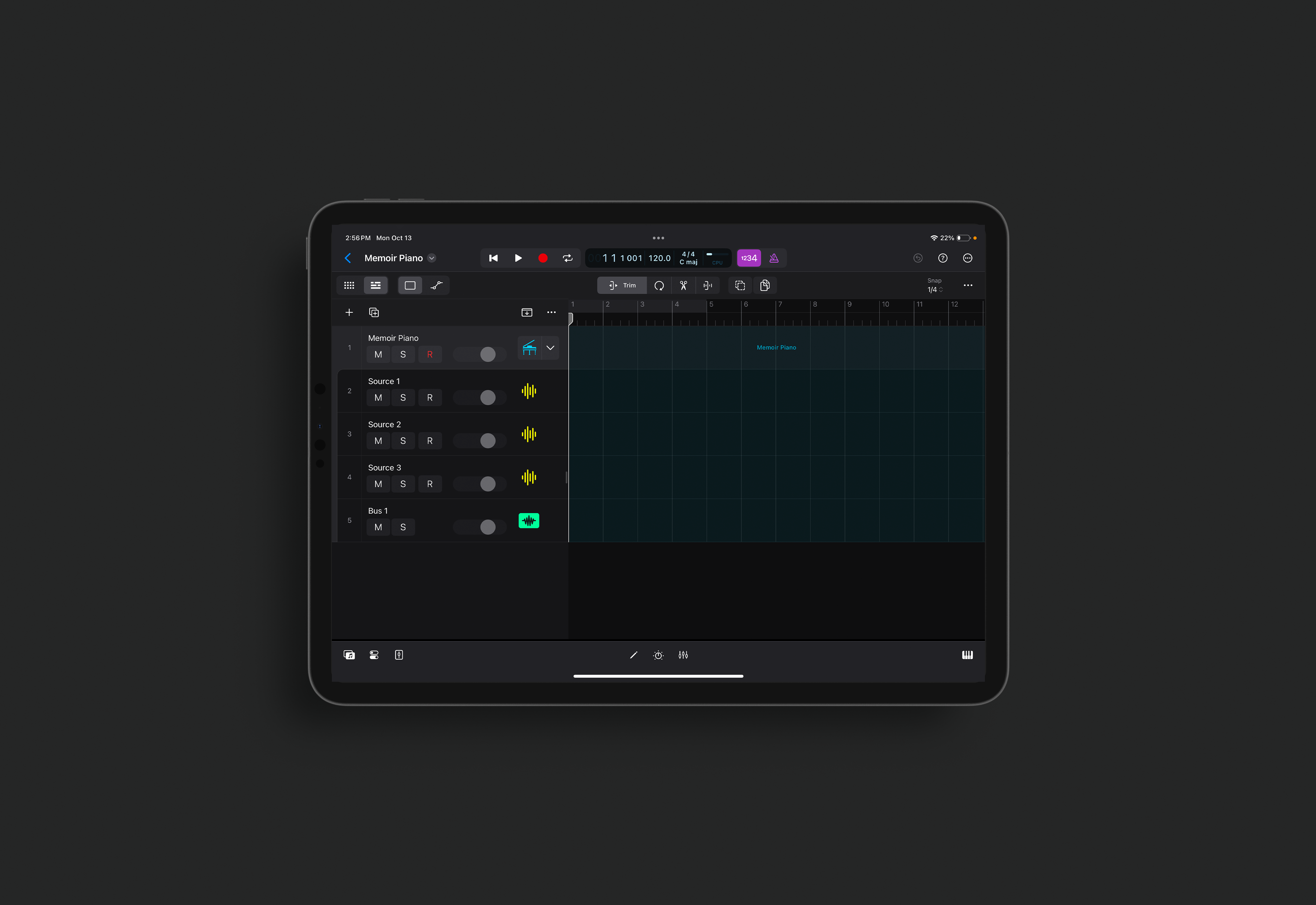
Features
Doppler instruments feature unparalleled Logic for iPad integration. All projects that include our instruments will translate seamlessly between Logic Pro and Logic for iPad, and all patches can be played with full functionality on the iPad platform. All effects, midi effects, automation, and articulation IDs can be accessed with ease from the Logic for iPad versions. The touch keyboard featured in Logic for iPad can be used as a standard midi keyboard or even as an MPE controller by turning on Y-Axis modulation and polyphonic pitch bend from the surface settings. Logic for iPad doesn’t currently provide access to Sampler’s internal settings or Smart Controls; however, all Doppler instruments include a Logic for iPad specific instrument design which alternatively utilizes the articulation dropdown menu to make program changes.
To install the Logic for iPad specific patch build, open the included .logicx project file and find the instrument track that’s loaded into the track header. Tap on the track and select Save Patch. Now you’ll be able to load the patches into any other project via the browser from the Your Sounds/Instrument Patches directory. You can also migrate projects between Logic Pro and Logic for iPad if you wish to use any of the controller specific patches included in the Logic Pro version or to make specific customizations to Logic Pro’s macro controls and Sampler settings.
Info
Tech Specs
Logic Pro version 10.8.1 or above required.
M-series iPads are recommended for the Logic for iPad versions.
Why am I getting a missing samples message?
If you're getting a missing samples message, it's likely because you missed a step during installation or moved the samples folder. Download the instrument again, and make sure to follow the installation protocols carefully.
What's the difference between the Logic Pro and Logic for iPad versions?
Both versions contain identical sample content and will sound exactly the same; however, the Logic for iPad versions were built specifically for use with the iPad's existing feature set and built in keyboard.
Why aren't my instruments appearing in the browser?
If your instruments aren't appearing in the browser, refresh the browser and search again. If they still don't appear, make sure you followed the installation protocol properly and placed the files in the correct locations.
Do I have to use Logic's Browser?
If you don't want to use Logic's native browser, you can load the patches manually by dragging the files over the track window.